How to Set Up ZKTeco Biometric Devices for Your Gym (Step-by-Step)
Why This Guide Matters for UAE Gyms
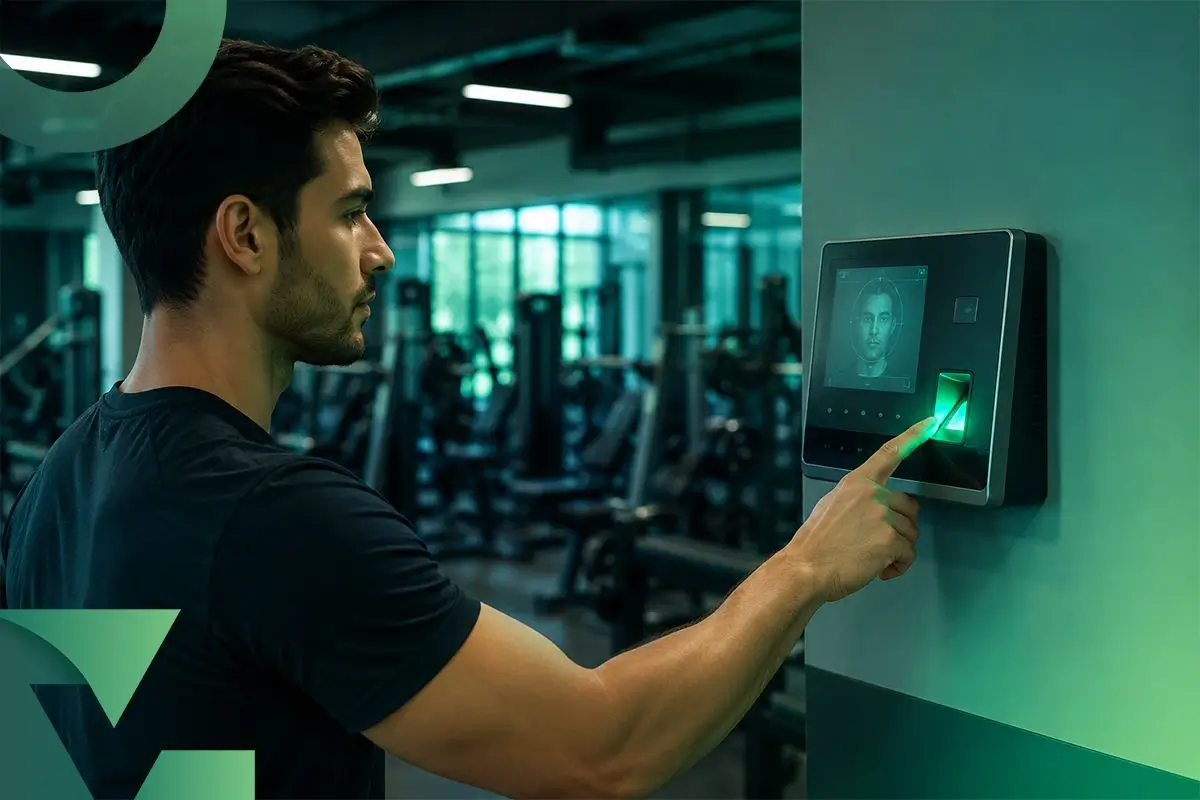
ZKTeco is the most widely deployed biometric access control brand in UAE fitness facilities. Over 70% of gyms in Dubai and Abu Dhabi that use biometric entry run ZKTeco devices — the SpeedFace V5L and ProFace X are the most common models at premium gym entrances, while the budget-friendly ZK-F22 fingerprint reader dominates smaller studios. Despite this prevalence, improper installation and configuration cause a majority of the access control failures we see when gyms first onboard with GymViz. This guide gives you the complete setup process: device selection, physical installation, network configuration, GymViz integration, member enrollment, access rules configuration, and a troubleshooting reference for the eight most common issues.
Step 0: Choosing the Right ZKTeco Device for Your Gym
Before purchasing hardware, match the device to your use case. The wrong device is the most expensive mistake in biometric setup — and it's made upfront, before a single member is enrolled.
- ZKTeco SpeedFace V5L (AED 1,800–2,200): Touchless facial recognition + palm vein verification. Verification speed: under 0.5 seconds. Capacity: 6,000 faces, 3,000 palm templates. Best for: main gym entrance at premium facilities and gyms processing 100–400 daily entries. The most popular choice among GymViz customers in UAE.
- ZKTeco ProFace X (AED 2,800–3,500): Multi-biometric — face, fingerprint, and palm. Capacity: 50,000 faces. Best for: large-volume gyms processing 500+ daily entries, or gyms needing a single device to serve multiple enrollment types. Includes Wi-Fi and PoE options for flexible installation.
- ZKTeco K40 (AED 1,200–1,600): Face + fingerprint. Capacity: 3,000 faces, 10,000 fingerprints. Best for: mid-tier facilities wanting touchless face recognition at a lower price point than the V5L. Common in studio environments.
- ZKTeco ZK-F22 (AED 400–600): Fingerprint-only reader. Capacity: 3,000 fingerprints. Best for: budget deployments, secondary zone access (sauna, VIP room), or small studios under 100 members. Not recommended for post-COVID high-touch-sensitivity environments.
- ZKTeco QR600 (AED 350–500): QR code + RFID reader. Best for: supplementary reader at a secondary entrance, or as a guest pass scanner. Compatible with GymViz's mobile app QR codes.
General rule: For your main entrance, invest in the SpeedFace V5L. Touchless operation reduces hygiene concerns (relevant in UAE post-COVID), and the sub-second verification speed handles morning rush periods (150+ members in a 90-minute window) without queuing.
Pre-Installation Checklist
Complete this checklist before the installation team arrives. Missing any item on the day causes delays and, in some cases, requires a return visit.
- Network: Wired Ethernet to the installation point is strongly preferred. If using Wi-Fi, ensure the SSID and password are available and the access point is within 5 metres of the device mounting location. Check with your IT provider that the network supports devices on the same subnet as your management server.
- Power: 12V DC power supply or PoE switch port within 2 metres. The ProFace X and SpeedFace V5L both support Power over Ethernet — this simplifies installation significantly. Confirm your network switch has PoE capability if you want to use this.
- Mounting location: For facial recognition devices, mounting height should be 1.3–1.5m from floor to camera lens centre. Ensure the wall surface at this height is solid (not hollow drywall), as the device bracket requires load-bearing fixings. Avoid mounting directly in front of a window or glass panel — direct backlighting causes face recognition failures.
- GymViz account: Your GymViz Professional or Enterprise subscription must be active and your gym's member database should be up to date before enrollment begins. Members not in GymViz at the time of enrollment will need to be re-enrolled separately.
- Turnstile (optional): If installing a physical turnstile, the turnstile manufacturer must provide a Wiegand or RS-485 relay output compatible with ZKTeco devices. Confirm compatibility before ordering the turnstile hardware. Most UAE-market turnstiles from Cominfo, Alvarado, and Boon Edam are compatible.
Step 1: Physical Installation
Mount the device bracket at the specified height using the template provided in the box. Use M4 anchor bolts for masonry walls; wood screws for timber stud walls. The SpeedFace V5L weighs 1.2 kg — do not mount on plasterboard alone without a backing plate.
Route your Ethernet cable (Cat5e or better) through the wall to the nearest network switch. If using PoE, a single cable carries both data and power. If not using PoE, route a separate 12V DC power lead. Connect both to the device before mounting it on the bracket — it's significantly easier to manage cables before the device is in position.
Once mounted and connected, power on the device. The ZKTeco startup screen displays the device's firmware version, device serial number, and — critically — its current IP address. Write this down. You will need the IP address for GymViz integration in Step 3. If using DHCP, note that the IP may change after a router restart; we strongly recommend assigning a static IP (see Step 2).
Step 2: Network Configuration
Access the device configuration menu by pressing the menu button or entering the admin PIN (factory default: 0000 or 12345 — change this immediately). Navigate to Communication → Network.
- IP Address: Assign a static IP in your local network's range. Recommended format: 192.168.1.xxx where xxx is a number not used by any other device. Static IPs prevent the device from changing address after a router restart, which would break the GymViz integration.
- Subnet Mask: 255.255.255.0 for most networks.
- Gateway: Your router's IP address (usually 192.168.1.1).
- Communication SDK: Enable under Communication → Server Settings. The default TCP port is 4370. Ensure port 4370 is not blocked by your firewall or router's port filtering rules.
- Time Zone: Set to Asia/Dubai (GMT+4). Enable NTP sync for automatic time correction. Accurate timestamps are essential for GymViz attendance log integrity.
- HTTPS/TLS: If your GymViz instance uses HTTPS communication (it does by default on cloud), ensure the device SDK version supports TLS. SpeedFace V5L firmware version 6.60+ supports TLS encryption. Check and update firmware if needed via ZKTeco's ZKBT tool.
Step 3: Connecting to GymViz
In your GymViz admin dashboard, navigate to Settings → Hardware → ZKTeco Devices → Add Device. Enter the device's static IP address and port (default 4370). Click Test Connection. A successful connection returns a green status indicator and displays the device serial number and firmware version — this confirms two-way communication.
Give the device a name that identifies its location (e.g., "Main Entrance — Dubai Marina Branch"). If you operate multiple branches, assign the device to the correct branch in the Branch field. This ensures attendance events from this device are attributed to the right location in your analytics. Save the device and wait 60 seconds for GymViz to complete the initial sync handshake.
Common connection failures at this step: firewall blocking port 4370 (open the port or add a firewall rule), device and GymViz server on different subnets (requires network route configuration), or incorrect IP entered in GymViz (double-check by pinging the device IP from any computer on the same network).
Step 4: Member Enrollment
Enrollment is the process of capturing each member's biometric template (facial geometry or fingerprint) and linking it to their GymViz member record. There are two enrollment workflows:
Individual Enrollment (Recommended for Ongoing New Members)
In GymViz, open the member's profile and click Enroll Biometric → Face Recognition. Select the device from the dropdown. A prompt sends to the device to enter enrollment mode. The member stands in front of the device — distance 40–80 cm, eyes level with the camera. The device captures 5 frames of the facial geometry and stores the template locally and in GymViz's database. Total time per member: under 60 seconds.
Batch Enrollment (For Existing Member Base Migration)
If you're migrating an existing gym with 200+ members, individual enrollment one-by-one is impractical. GymViz's batch enrollment feature schedules enrollment appointments via WhatsApp — each member receives an automated message asking them to visit the front desk during a specific time window for a 30-second enrollment. Staff-assisted batch sessions of 50 members take approximately 45 minutes. For gyms with 300+ members, plan for two 2-hour enrollment sessions over two days.
Step 5: Access Rules Configuration
Access rules determine what happens when a member scans — whether they're granted entry, denied with a message, or denied with an alert. Configure these in GymViz under Settings → Access Rules.
- Active membership: Access granted. Green indicator on device screen. Entry logged with timestamp.
- Expired membership: Access denied. Device displays "Membership Expired" message. Automatic WhatsApp sent to member with payment link. Manager alert generated in GymViz dashboard.
- Frozen membership: Access denied. Device displays "Membership Paused" message. Friendly tone — no penalty notification.
- Suspended (failed payment): Access denied. WhatsApp with payment link sent automatically. After payment, access restores within 60 seconds.
- Time-restricted plans (e.g., Off-Peak): Access granted only between configured hours. Outside those hours, device displays "Off-Peak hours only" and denies entry. No staff involvement required.
- Multi-branch rules: If a Premium member has cross-branch access, their biometric template is synced to all branch devices automatically. A Basic (home-branch-only) member's template is only on their home branch device — attempting entry at another branch results in denial with a "Branch access not included" message.
Troubleshooting the 8 Most Common Issues
1. Device won't connect to GymViz: Verify port 4370 is open. Try pinging the device IP from the GymViz server. If behind a NAT or cloud server, ensure the device can initiate outbound TCP connections on port 4370.
2. Face recognition failures (high false-rejection rate): The most common cause is backlighting. Reposition the device or add ambient lighting behind the camera's sightline. Clean the camera lens with a microfibre cloth — dust accumulation reduces recognition accuracy significantly in dusty UAE environments. Re-enroll members with persistent failures with better lighting conditions.
3. Slow verification (over 2 seconds): Check network latency between device and GymViz server. For cloud-hosted GymViz, ensure the device's internet connection is stable (run a speed test from the same network). If using WiFi, switch to Ethernet. Reduce enrolled template count on a single device to under 3,000 faces for best speed performance on the SpeedFace V5L.
4. Access granted to expired member: Check that GymViz's access sync is running (Settings → Hardware → Sync Status should show "Last sync: within 5 minutes"). A sync delay means the device hasn't received the expiry update. Force a manual sync from GymViz if needed.
5. Timestamps incorrect in attendance log: Time zone misconfiguration on the device. Navigate to device settings → Time and verify Asia/Dubai (GMT+4) is selected and NTP sync is enabled.
6. Device reboots unexpectedly: Common on budget models with unstable power supply. Replace the power supply unit or switch to PoE for more stable delivery. Ensure the power supply is rated at the correct voltage (12V DC, minimum 2A for SpeedFace V5L).
7. Members can't enroll (template capture fails): Usually a lighting issue. Ensure 200–400 lux of ambient light at the enrollment position. Some members with reflective glasses need a second enrollment pass with glasses removed. Fingerprint enrollment failures often indicate dry skin — apply moisturiser and retry after 30 minutes.
8. Turnstile doesn't open after successful scan: Check the Wiegand or relay output wiring between the ZKTeco device and the turnstile controller. The device's relay output must be configured to match the turnstile's input voltage (12V vs 24V). Consult your turnstile manufacturer's wiring diagram.
Maintenance Schedule for UAE Environments
UAE's dusty climate and humidity swings in coastal areas affect device performance more than in temperate climates. Recommended maintenance: clean camera lens weekly with microfibre cloth, check device case seal monthly for dust ingress, verify network connection status in GymViz weekly, update firmware when ZKTeco releases updates (typically quarterly), and replace battery backup (if device has one) annually. For full device compatibility details and integration documentation, visit the GymViz biometric access control page and our gym access control Dubai hardware guide.
Related Reading
Start Your Free Trial
Join 500+ gyms already using GymViz to automate operations and increase revenue.
Get Started FreeRajesh Kumar
Fitness technology consultant with 12+ years helping gyms implement access control systems